Tutorial for IPTV on Firestick​

Here's a tutorial to set up the best IPTV players on Fire TV Stick from scratch, Easy steps!

Part 1: Get the Downloader app on Firestick

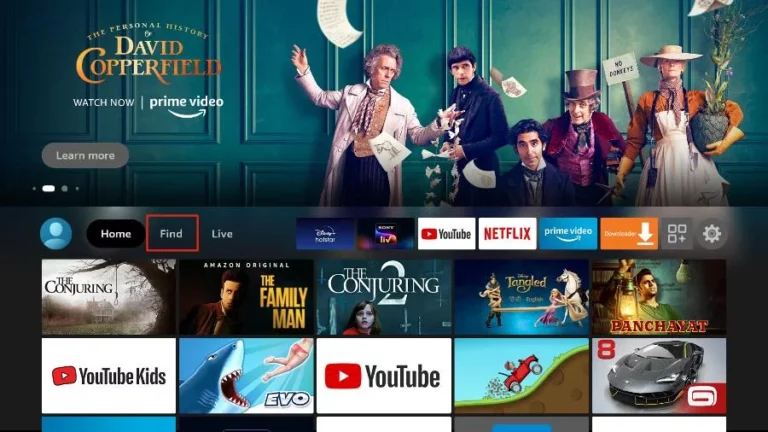
1. Open the FireStick home screen.

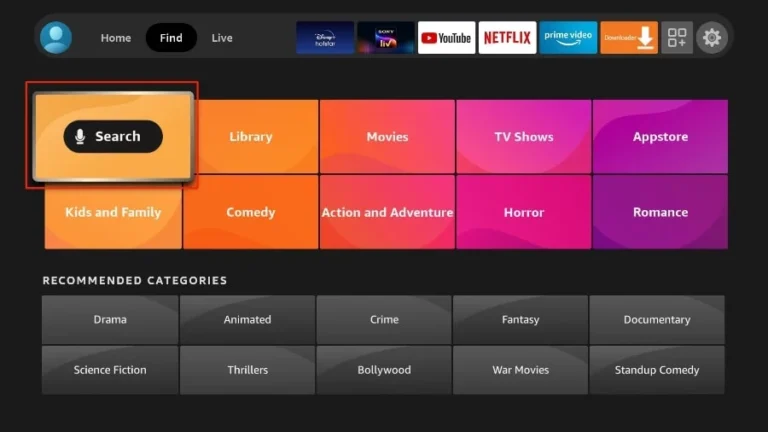
2. Go to the Find menu page.

Accessing premium movies and live channels through the integrated iptvon interface on a smart TV.

3. Select Search at the top.

Navigating the Fire TV search menu to install the iptvon application for live streaming content.

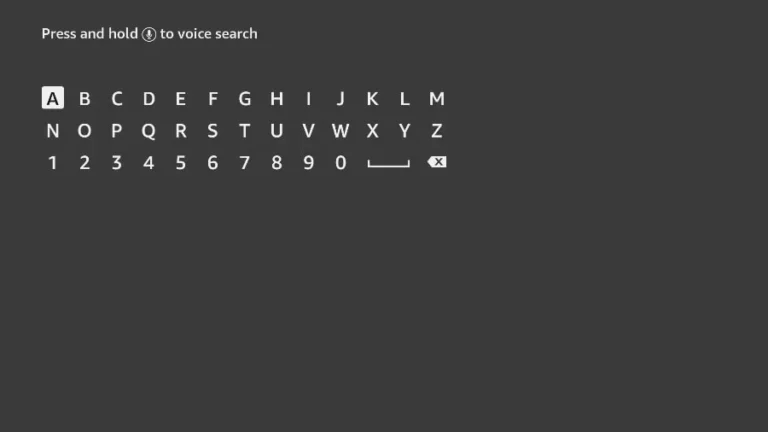
4. This will open a virtual keyboard on your FireStick.

Using the iptvon search interface to find live TV channels and on-demand movies.

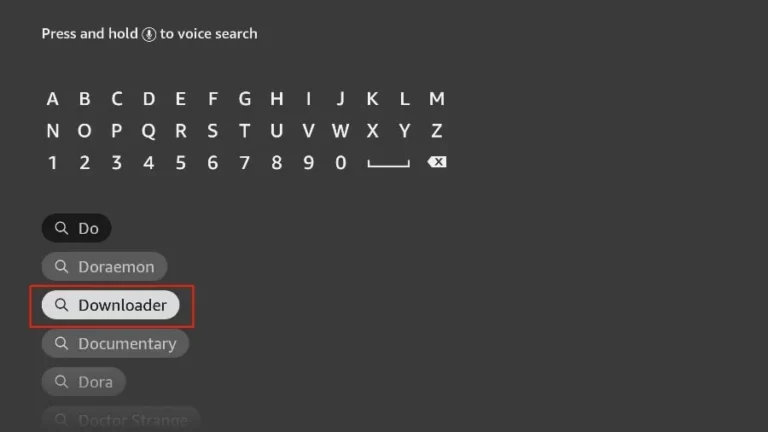
5. Start typing Downloader. Select Downloader when it appears among the suggestions below the keyboard.

Searching for the Downloader app on a smart TV interface to install iptvon services.

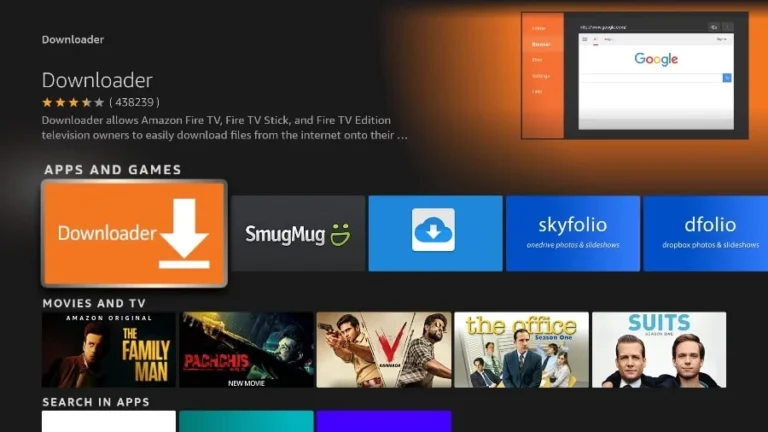
6. Select the Downloader application, recognizable by its orange background. Then, in the next screen, select the Get or Download button.

Using the Downloader app on Fire Stick to sideload and install iptvon for premium streaming access.

In some version of FireStick

1. Press home button on your FireStick remote.

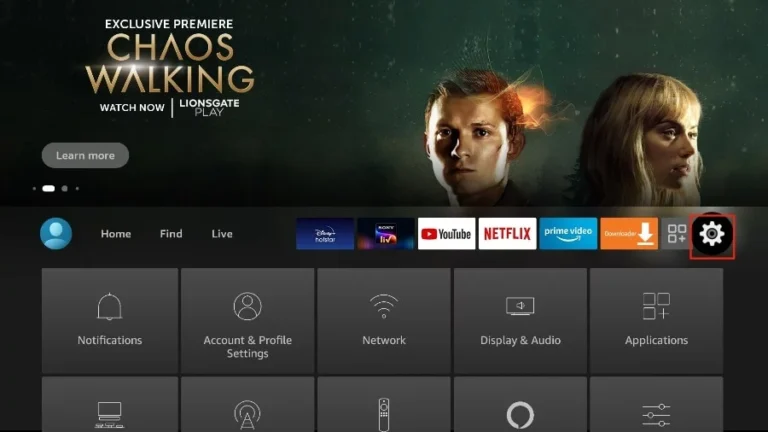
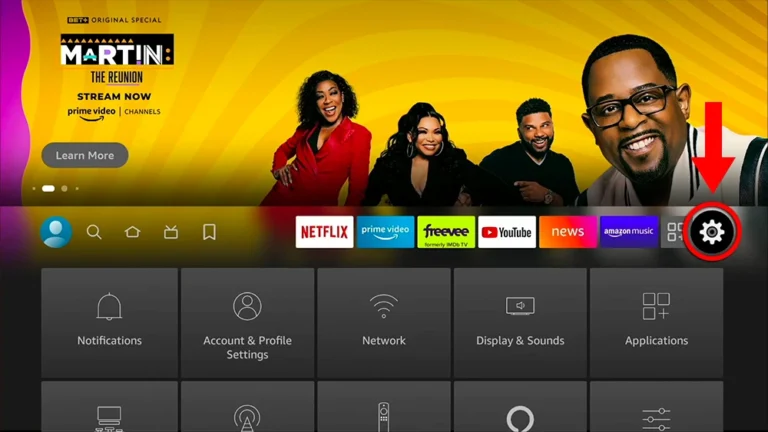
2. Go to the gear settings page on the far right.

Navigating to the settings menu on a streaming device to configure the iptvon app for live media playback.

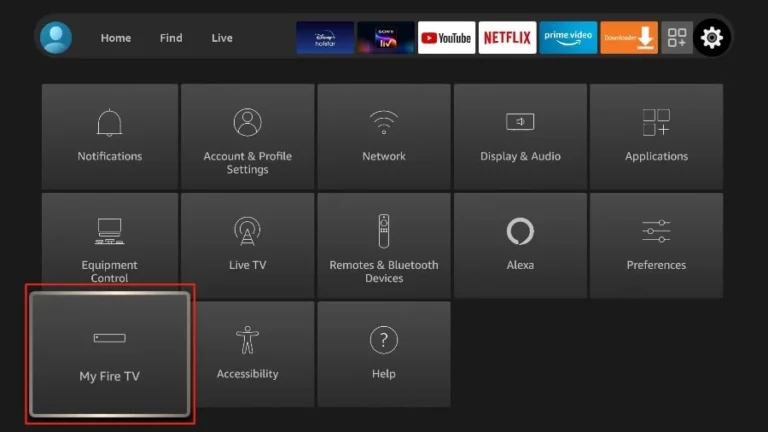
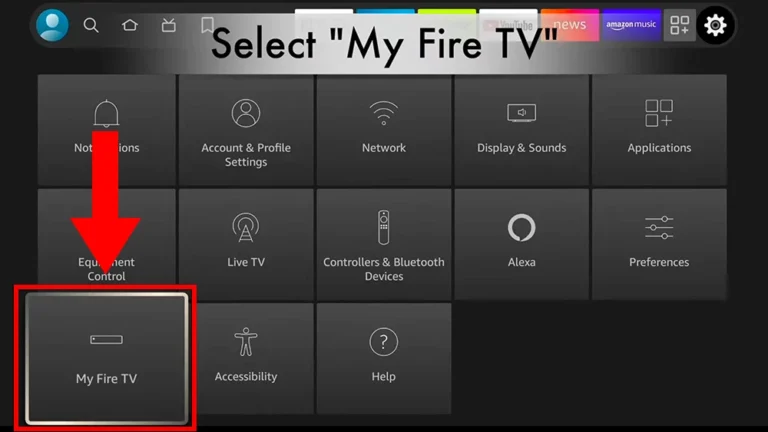
3. Scroll down and select “My Fire TV“.

Accessing the My Fire TV menu in settings to configure developer options for installing iptvon.

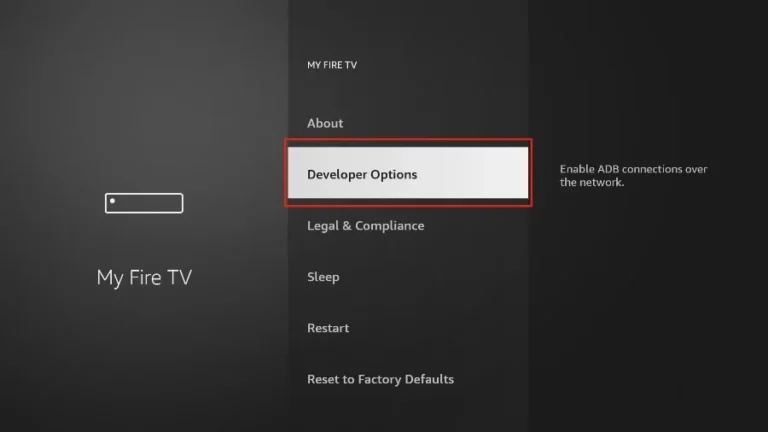
4. Choose “Developer Options“.

Navigating to Developer Options on Fire TV menu for iptvon sideloading and app installation.

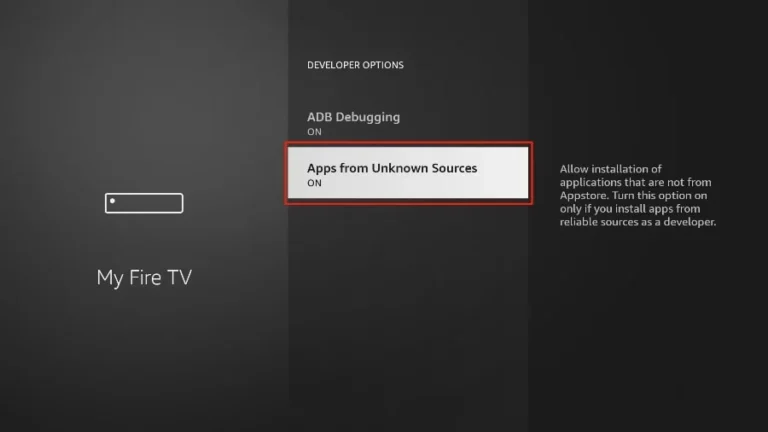
5. Find “Apps from Unknown Sources”. By default, it is disabled. Select it to turn it ON.

User enabling Apps from Unknown Sources in Fire TV developer settings to install the iptvon streaming application.

You can now sideload any application installer file (APK) to the FireStick without any issues.

In Other version of FireStick

1. Press home button on your FireStick remote.

2. Go to the gear settings page on the far right.

Navigating to settings menu on Fire TV to configure the iptvon app installation.

3. Scroll down and select “My Fire TV“.

Navigating to the My Fire TV settings menu to prepare your device for the iptvon application installation.

4. Select “About“.

Navigating to the About menu in Fire TV settings to prepare for iptvon app installation.

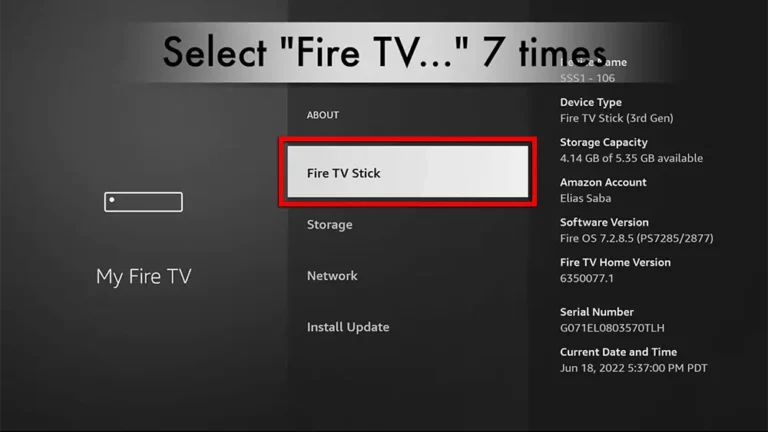
5. Click on “Fire TV Stick” 7 times.

Enabling developer options on Amazon Fire Stick to prepare for iptvon application installation.

6. Choose “Developer Options“.

Accessing Developer options in Fire TV settings to sideload the iptvon app for streaming.

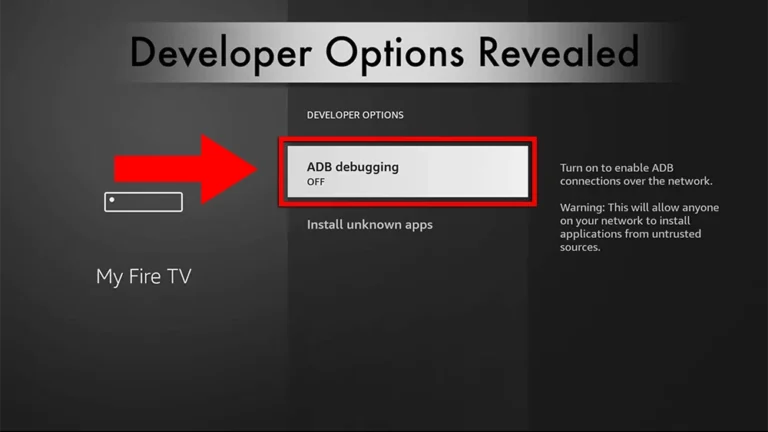
7. Select “ADB debugging” to turn it ON.

Enabling ADB debugging in Fire TV developer options to allow third-party app installation via iptvon.

You can now sideload any application installer file (APK) to the FireStick without any issues.
Here are the popular Firestick apps

To run IPTVON service on your Firestick, simply download the Downloader app and use it to install the IPTV players. Just follow these easy steps:

iboplayerpro iptvon

ibo Pro Player (Paid)

The Ibo Pro Player is a streamlined IPTV app for streaming live TV, movies, and on-demand. It offers a 7-day free trial period before asking for a one-time payment.

Learn More

tivimate iptvon

TiviMate (Paid)

TiviMate is considered a paid app and it comes highly recommended for its advanced features(Recording, Picture-in-Picture…). With a single premium subscription, you can use the app on a maximum of 5 devices.

Learn More

Configuring the IPTV Smarters Pro application to stream live channels and VOD with iptvon services.

IPTV Smarters Pro (Free)

IPTV Smarters Pro is a free IPTV app to watch live TV, Movies, TV shows, Series.

Learn More

“P.S. You can download any IPTV app you want, Our Service work on any app or Device, The apps above just the recommended apps”