Here's a tutorial to set up the IPTV on Mag BOX / STB Emulator from scratch, Easy steps!
To begin using the IPTVON service on your MAG box, simply follow the steps below:
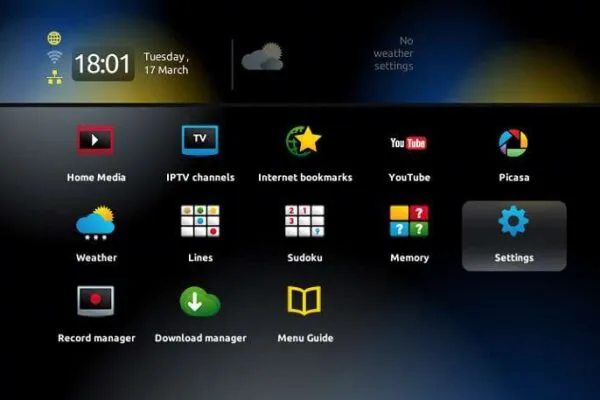
1. When the box is being loaded the main portal screen appears. After that, Click on “SETTINGS“, Press remote button “SETUP/SET“.
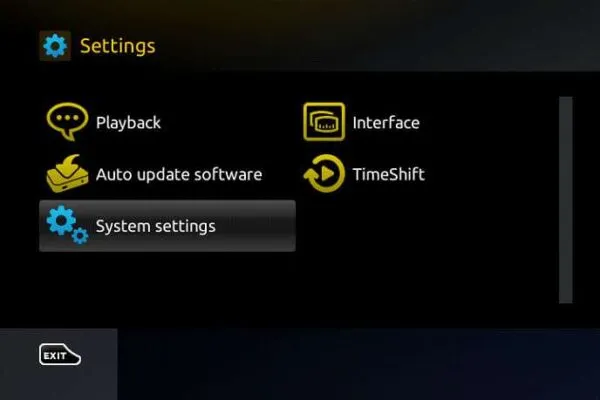
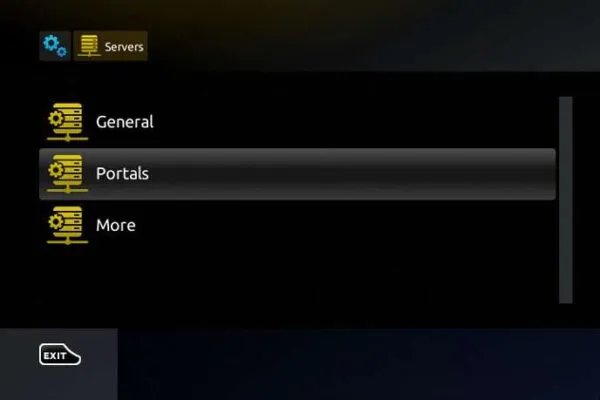
2. Then, Click on “System settings” and click on “Servers”.
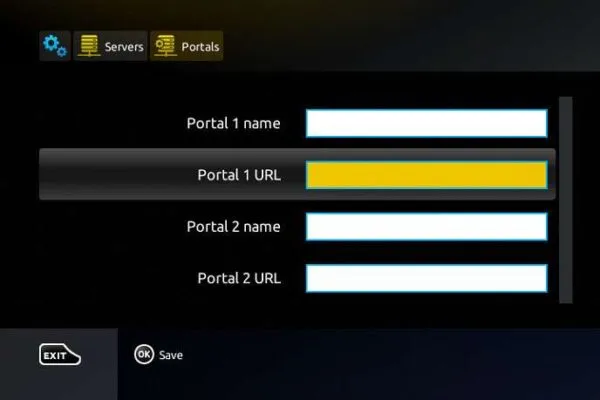
4.In the “Portal 1 Name” section, enter IPTVON. In the “Portal 1 URL” section, enter the Portal URL provided by us after subscribing.
You must send us the Mac address of your device, you can find it at the bottom of your box. Get Your Subscription Here.
5. When all the operations listed above is done, then press “OK”.
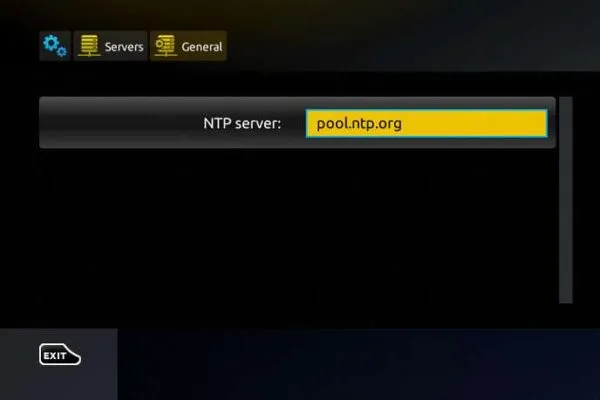
When the settings are being saved, then click on “EXIT” on the remote control and click on option “General”.
In the “NTP server” line, enter the following address: pool.ntp.org or us.pool.ntp.org for North America. And Click on “OK”
6. Once you’ve completed all the preceding steps, click on “EXIT” twice with your remote control. Afterward, select “Restart portal” to finalize the setup process.
Now, Congrats! Enjoy watching your favorite channels, movies and series.