Tutorial for ROKU

Here's a tutorial to set up the IPTV app on Roku from scratch, Easy steps!

To run the IPTVON service on your Roku, simply download ibo Player Pro App from your Roku Channel Store or Caste from your Smartphone to your TV.

Set up your Roku with ibo Player Pro App:

Step 1: Go to the Roku Channel Store. Search for “IBO Player Pro.” Select “Add Channel” to install it.

iboplayerpro iptvon
 

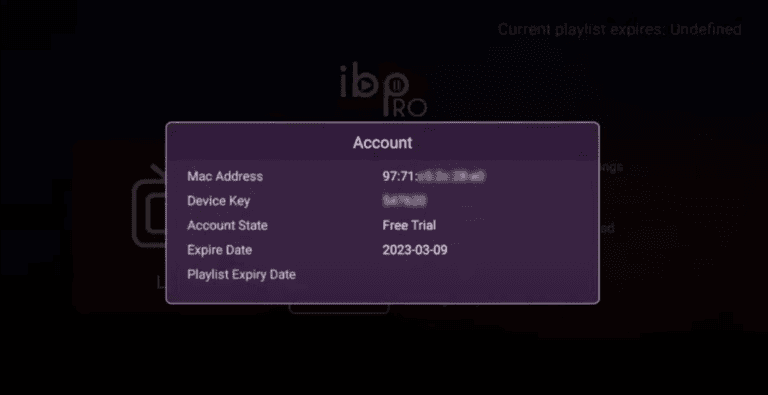
Step 2: Open the App and Click on “Account” to see an activation screen displaying a unique activation code (MAC Address and Device Key).
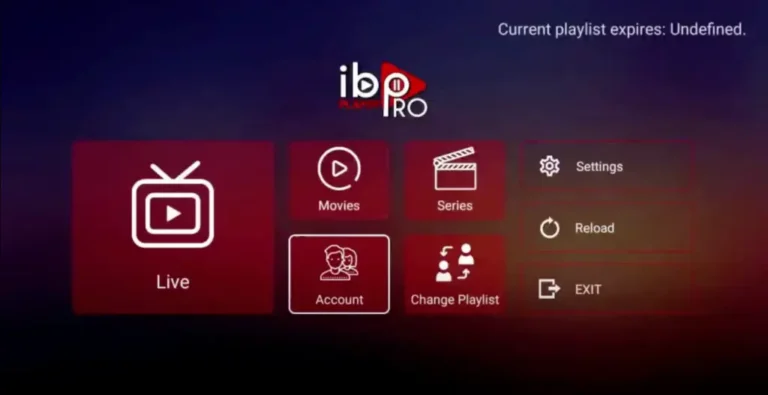
Navigating the IBO Player Pro main menu to access live TV and movies through iptvon streaming services.
Checking the account status and MAC address on IBO Pro for iptvon service activation.
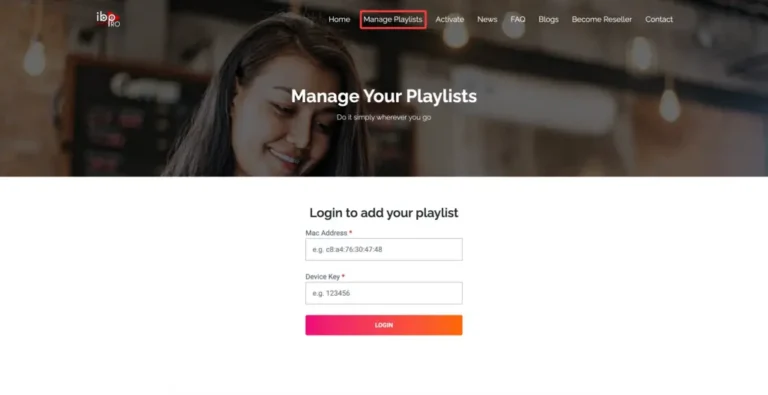
2. Visit ibo Player Pro website https://iboproapp.com and Click “Manage Playlists” in Menu section. Then Enter the MAC Address and Device Key displayed on your device screen and Click “Login
Logging into the iptvon portal to manage streaming playlists using Mac address and device key authentication.
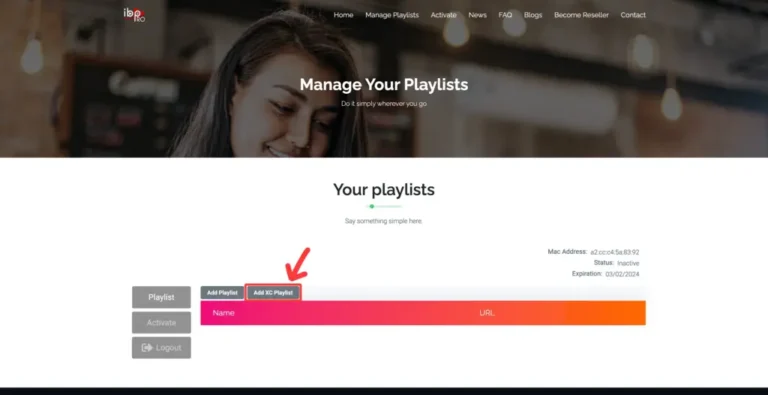
 3. Click “Add XC Playlist” (recommended way).
Step-by-step setup for iptvon users adding an XC playlist to their web management portal.
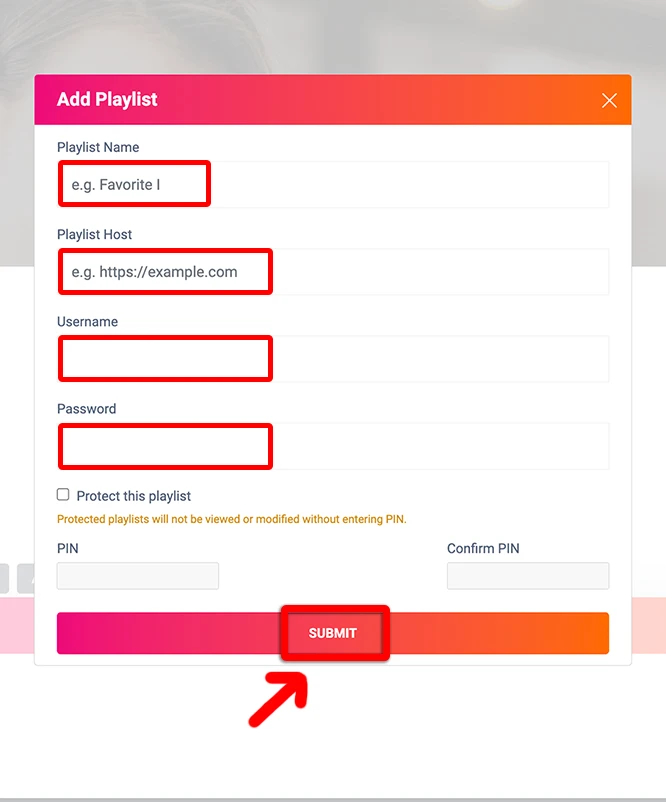
4. Enter “IPTVON” as the Playlist Name in the first box. Then in the second, third, and fourth boxes, input the Xtream Codes login credentials (Server address (Playlist Host), Username and Password ) provided by us after subscribing. Finally, click “Submit” to proceed. Get Your Subscription Here.
User interface showing how to enter playlist credentials and host details into the iptvon application.
5. After activation, return to your device and restart the ibo Pro Player app for the changes to take effect. Then, select “Continue“, followed by “Change Playlists“, and connect to your IPTVON playlist. Have a great time!

Congratulations! You’ve now completed the setup of the ibo Player Pro app for seamless streaming.

Casting from your Smartphone to your TV?

There is another way to enjoy IPTVON. You’ll need to have either an Android or iOS device and install the Web Video Cast app on it. This application is available in the Google Play Store and the Apple App Store.

These instructions will get you up and running quickly:

  1. Install the Web Video Cast app from the Play Store or Apple Store and then open it.
  2. Tap on the three lines in the top left-hand corner of the screen to bring down the sidebar.
  3. Select ‘IPTV’ from the list.
  4. Next, tap on the + icon to open up a blank field under a spot that reads ‘IPTV address’.
  5. In this field, you will now paste your M3U URL. This link is what will be given to you after you’ve signed up for IPTVON.
  6. Give your IPTV list a name. You should name it IPTVON. But you can name it anything.
  7. Exit this sidebar menu and tap on the Cast icon. It is located in the top right-hand corner of the app and looks like a TV screen with signal waves next to it.
  8. Now you’ll have to select the type of device you want to scan for. Scroll down and tap on the Roku device option and then tap on ‘Done’. Be extra sure that both your smartphone and your Roku are connected via the same Wi-Fi network or this step will not work.
  9. Go to the IPTV menu section of the Web Video Cast app and look for the account you named in step Click on it.
  10. Wait for a few moments for the app to load the playlist.
  11. Tap on the Roku Device option on the following page and lastly tap on the ‘Play’ option.