
1# How to Install TiviMate FireStick: Best 2026 Guide
If you want to Install TiviMate FireStick and enjoy a premium IPTV experience, you are in the right place. TiviMate is currently the best player for Fire TV users who want a cable-like interface. In this 2026 update, we show you the exact steps to download the APK and setup your playlist using M3U or Xtream Codes API.
What is TiviMate and Why Use it on Fire TV?
Before we dive into the installation, let’s understand why thousands of users choose to Install TiviMate FireStick over other players like Smarters Pro or GSE. TiviMate offers a modern UI, ultra-fast channel zapping, and a highly customizable Electronic Program Guide (EPG). It turns your streaming device into a professional-grade cable box with features like multi-screen and recording.
Prerequisites for Installation:
- A FireStick (Lite, 4K, or 4K Max).
- A stable high-speed internet connection (minimum 25 Mbps for 4K).
- The Downloader app (Found on the Amazon Appstore).
Step 1: Prepare your Device for TiviMate APK
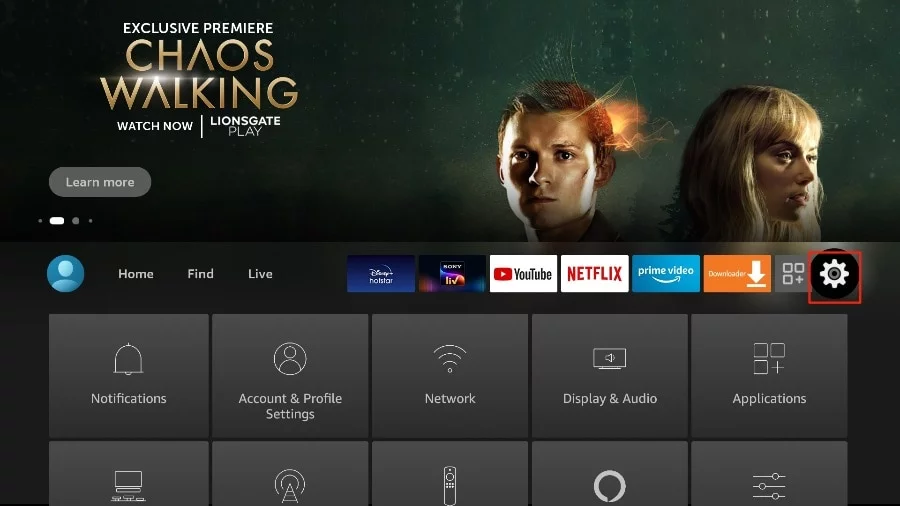
To Install TiviMate FireStick, you must first bypass the default security settings. Since TiviMate isn’t on the official Amazon store, we need to allow “Unknown Apps”.
- Navigate to Settings from the home screen.
- Select My Fire TV.
- Open Developer Options.
- Enable Install unknown apps specifically for the Downloader application.
Pro Tip: If Developer Options is hidden, go to Settings > My Fire TV > About and click the Fire TV Stick name 7 times until you see the “You are now a developer” notification.
Step 2: How to Download and Install TiviMate FireStick
Now, we will use the Downloader app to fetch the latest TiviMate APK version. Follow these precise steps to Install TiviMate FireStick safely:
- Launch the Downloader app.
- Click on the URL search box and enter the TiviMate download code.
- Wait for the download to complete.
- Once prompted, click Install.
- After installation, click Done and delete the APK file to save storage on your device.
Step 3: Setup IPTV Playlist (Xtream Codes & M3U)
After you successfully Install TiviMate FireStick, it’s time to add your content. Most premium IPTV providers support either M3U or Xtream Codes. We highly recommend using Xtream Codes API for a better experience with EPG data and channel categories.
- Open TiviMate and click Add Playlist.
- Select Xtream Codes.
- Enter the Server URL, Username, and Password provided by your IPTV service.
- Click Next and let the app process the channels.
Key Features of TiviMate Premium in 2026
Why is everyone trying to Install TiviMate FireStick? The premium version offers features that are game-changers for streamers. You can manage multiple playlists from different providers in one interface. Also, the “Catch-up” feature allows you to watch shows you missed in the last 24-48 hours. The interface is fully customizable, meaning you can hide categories you don’t watch and create a “Favorites” list for quick access.
TiviMate vs IPTV Smarters Pro: Which is Better?
While Smarters Pro is free and easy to use, TiviMate is designed for those who want a high-end experience. TiviMate feels like using a real satellite receiver, whereas Smarters Pro feels more like a mobile app. If you have a FireStick 4K Max, we strongly suggest you Install TiviMate FireStick to take full advantage of the hardware power.
FAQ about TiviMate Installation
- Is it legal to Install TiviMate FireStick? Yes, TiviMate is a legal media player. However, the legality depends on the IPTV service you link to it.
- Why is my EPG not loading? Make sure you entered the Xtream Codes correctly. Sometimes providers require a specific EPG URL.
- Does TiviMate work with VPN? Absolutely. We recommend using a high-quality VPN to prevent ISP throttling during live sports.
If you found this guide helpful, check out our other tutorials on the best IPTV services for 2026 or learn how to optimize your FireStick for faster streaming.
Important About TiviMate App!
You can access Live TV channels solely through TiviMate as it requires a premium subscription for added features like adding channels to favorites, recording and watching movies and series. Despite the subscription requirement, TiviMate offers great value and superior functionality compared to other apps, which is why we highly recommend it for the best service experience. (You can use the app on a maximum of 5 devices)
If you want to pay TiviMate premium subscription, please follow these quick easy steps:
Step 1:
Access the Play Store on your Android Smartphone or Tablet. Download the TiviMate Companion app, open it, and select “Account”. Create your account and proceed with the payment.
The price for lifetime access: $29.99
The price for yearly plan: $9.99
Step 2:
Launch the TiviMate app on your Fire TV Stick, access settings, choose “Unlock Premium” and input the account details created in TiviMate Companion. This will grant you complete access to the TiviMate app.